Admin Panel Setup
Follow these steps to set up the admin panel
Hosting PHP Admin Panel on Hostinger
Step-by-Step Guide
Step 1: Access Your Hosting Platform
- Open your hosting platform connected to your domain (in this case, we are using Hostinger) Hostinger.
- You can refer to Hostinger's website for hosting plans (get 20% off via a special link).
Step 2: Navigate to Databases
- Go to your Hosting Dashboard and select Databases.
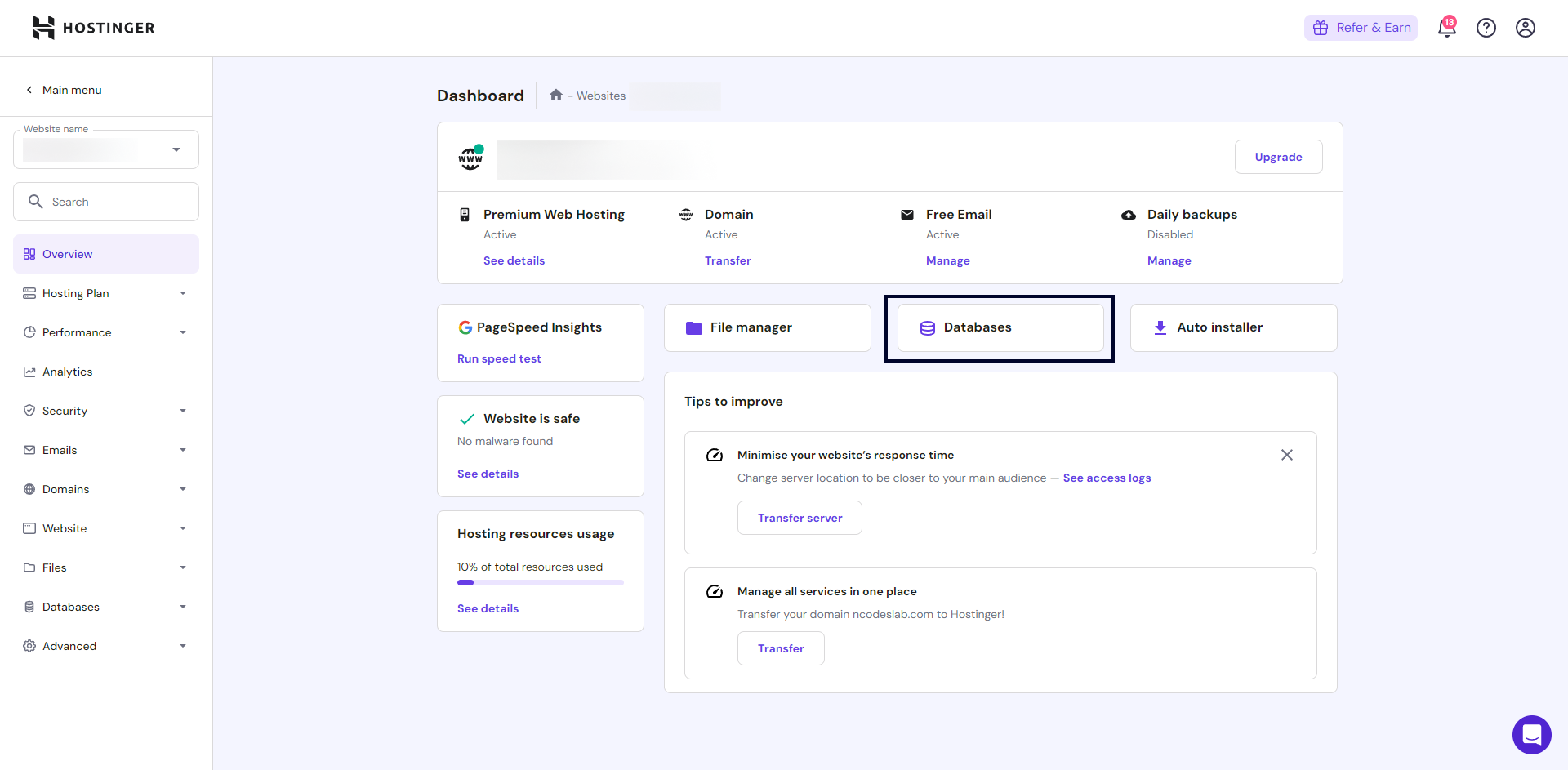
- Click on Create a New Database.
Step 3: Create a New Database
- Enter the
databasename,username, and password for the new database. - After filling in the details, click on Create Database.
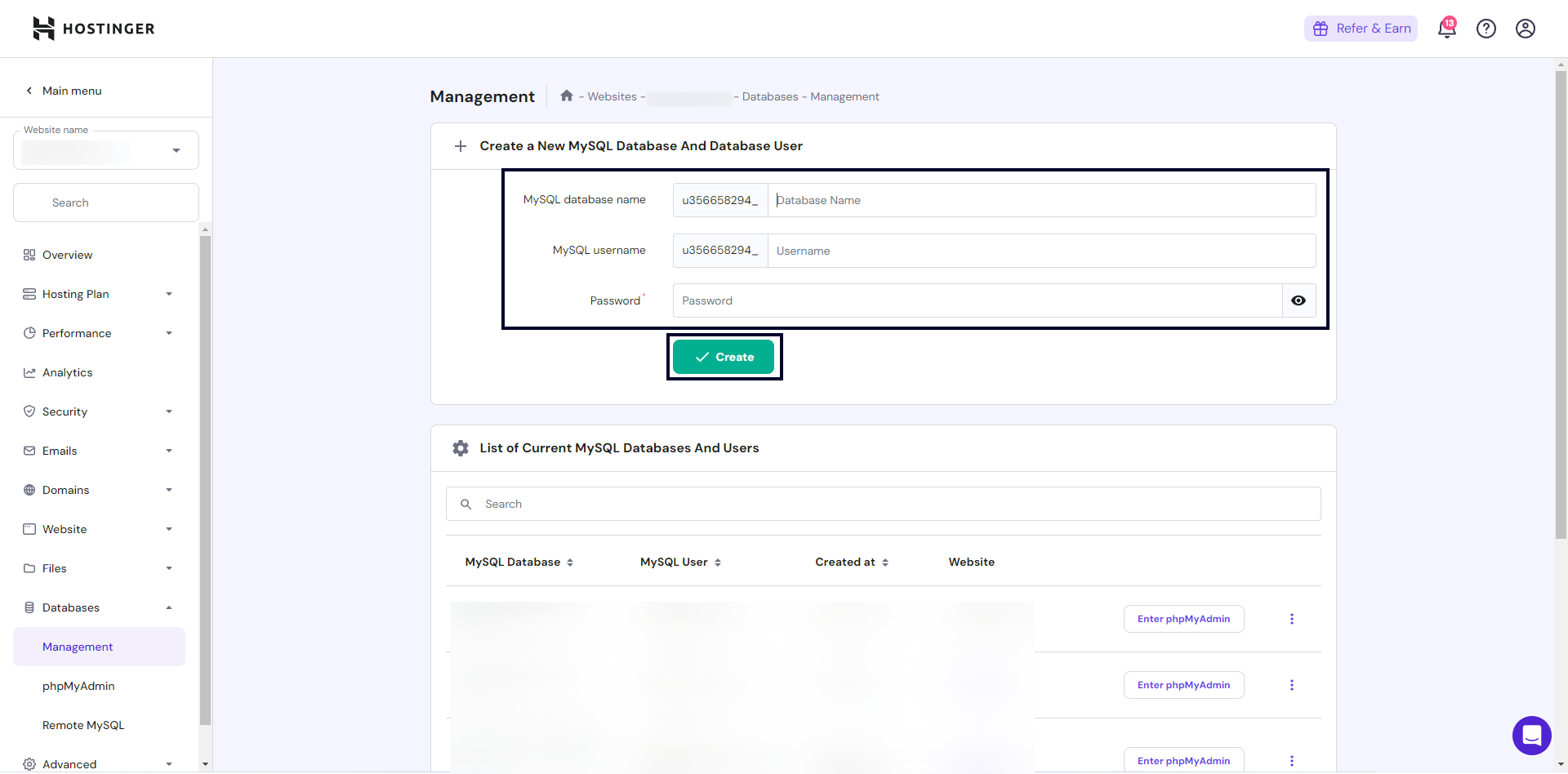
Step 4: Access phpMyAdmin
- Scroll down to the list of databases and click on Enter phpMyAdmin for the newly created database.
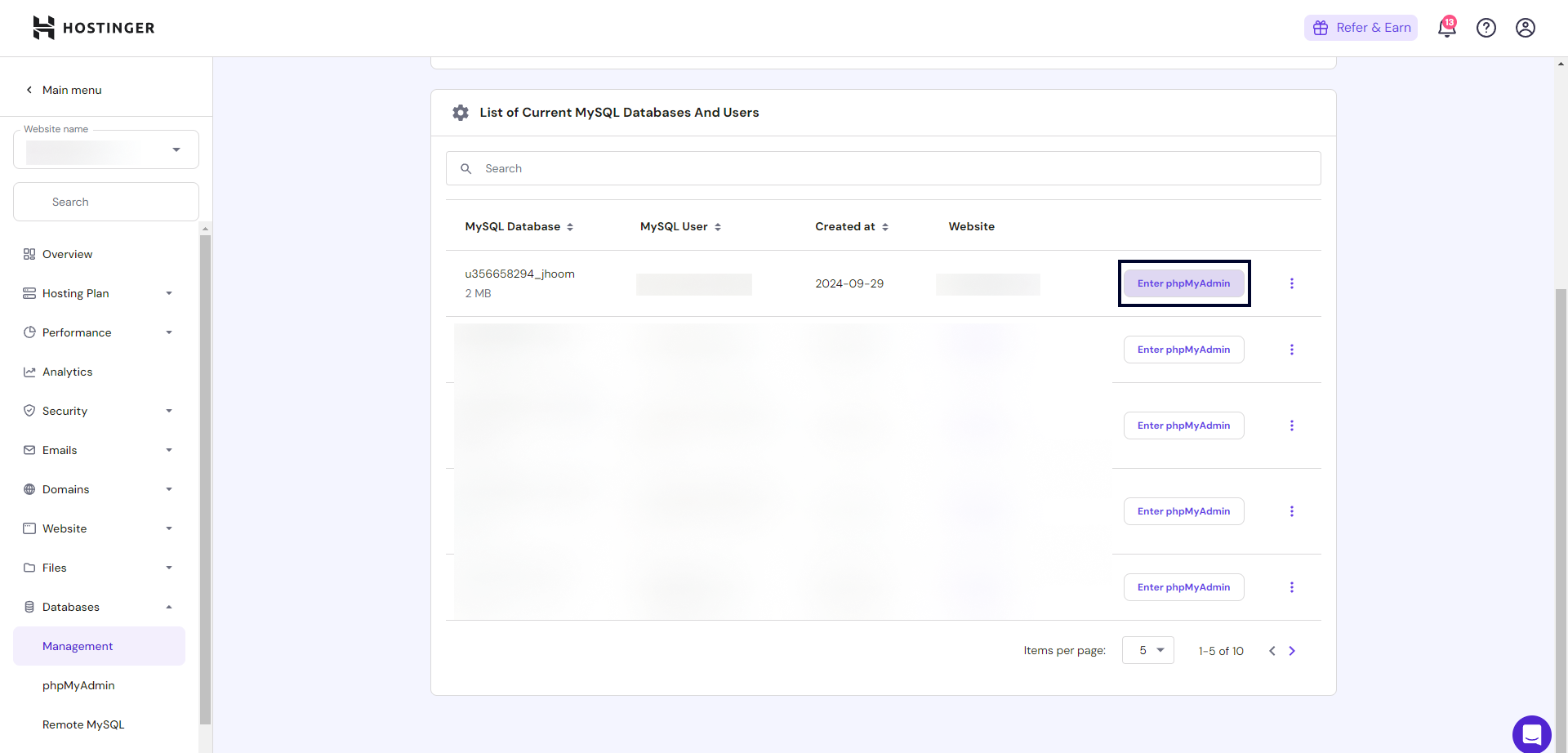
Step 5: Import the Database
- In phpMyAdmin, go to the Import tab.
- Click Choose File and select the
database.sqlfile from the project files downloaded from CodeCanyon. - After selecting the file, click Go to complete the database import.
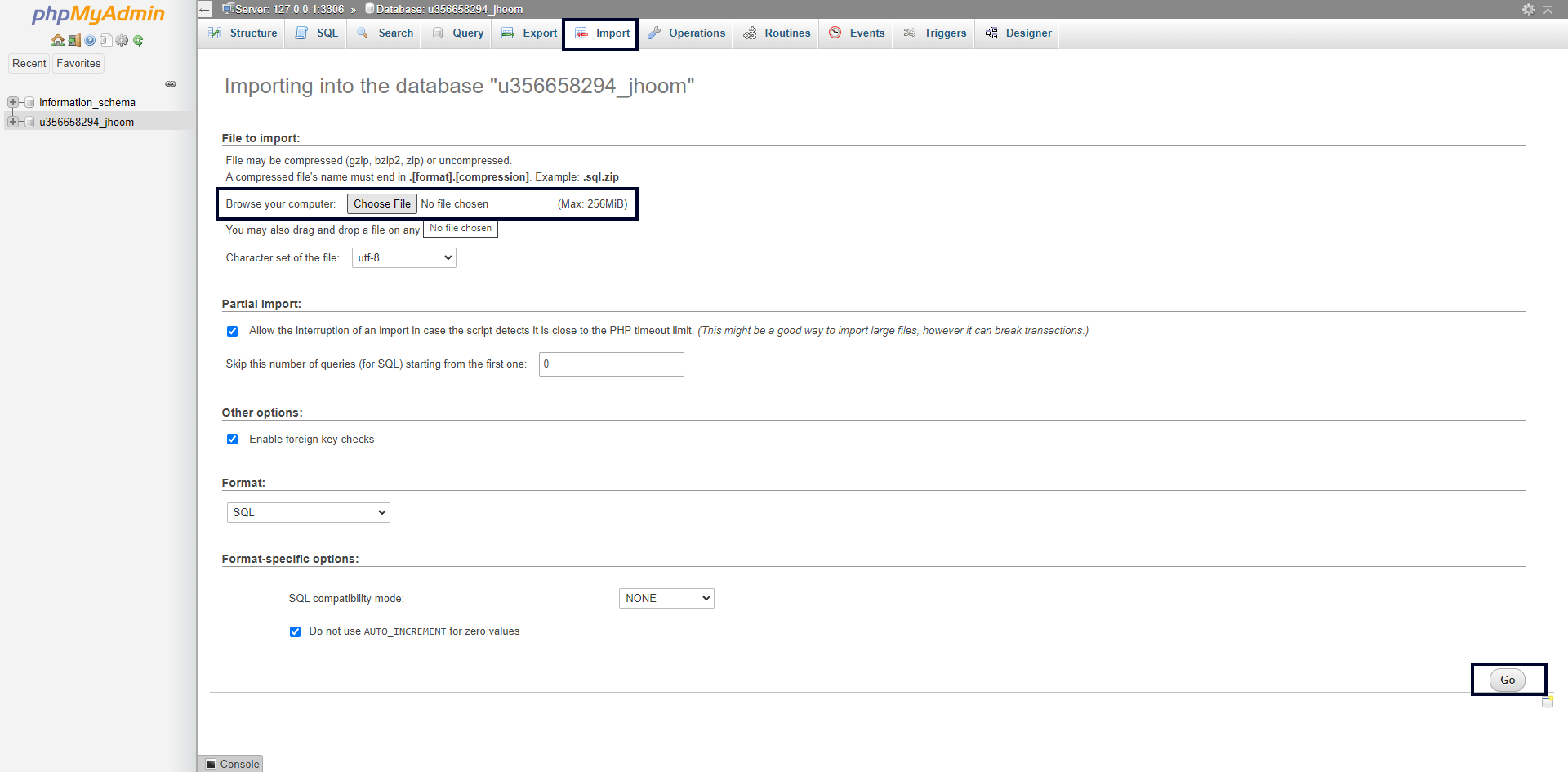
Step 6: Upload Admin Panel Files
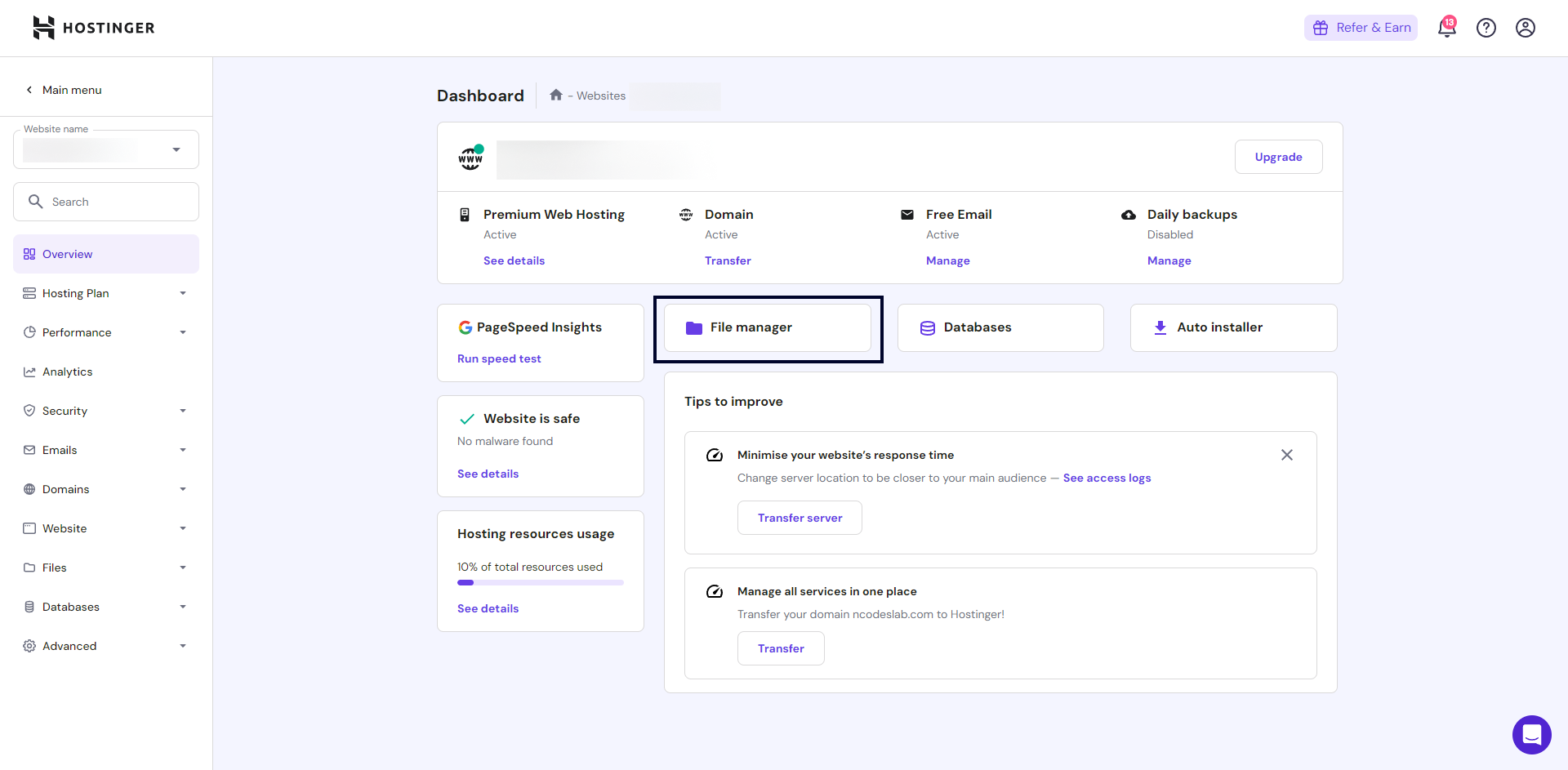
- Go back to the Hosting Dashboard and select File Manager to open the file manager.
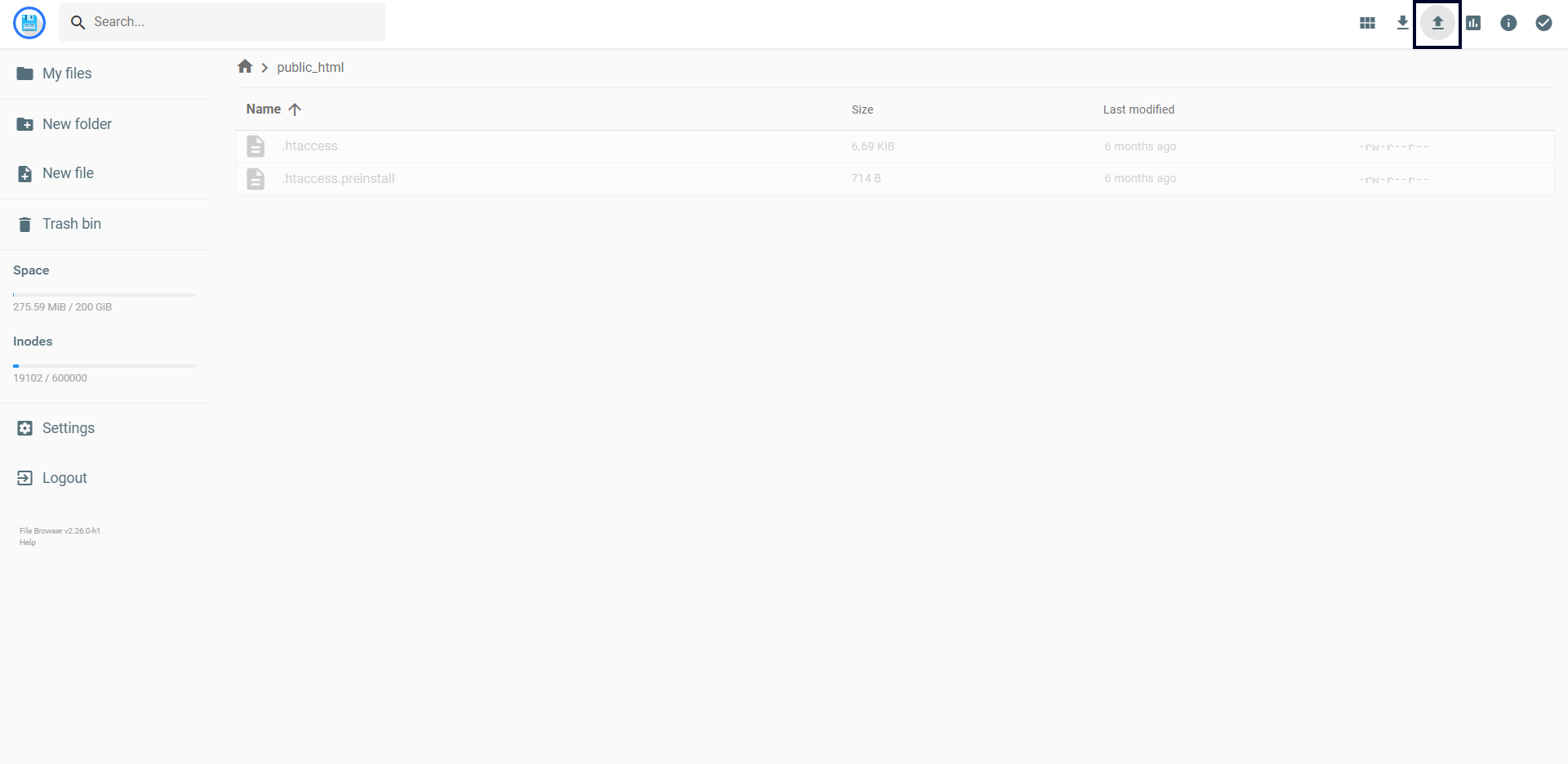
- Upload the
admin_panel.zipfile from your CodeCanyon download.
Step 7: Extract Admin Panel Files
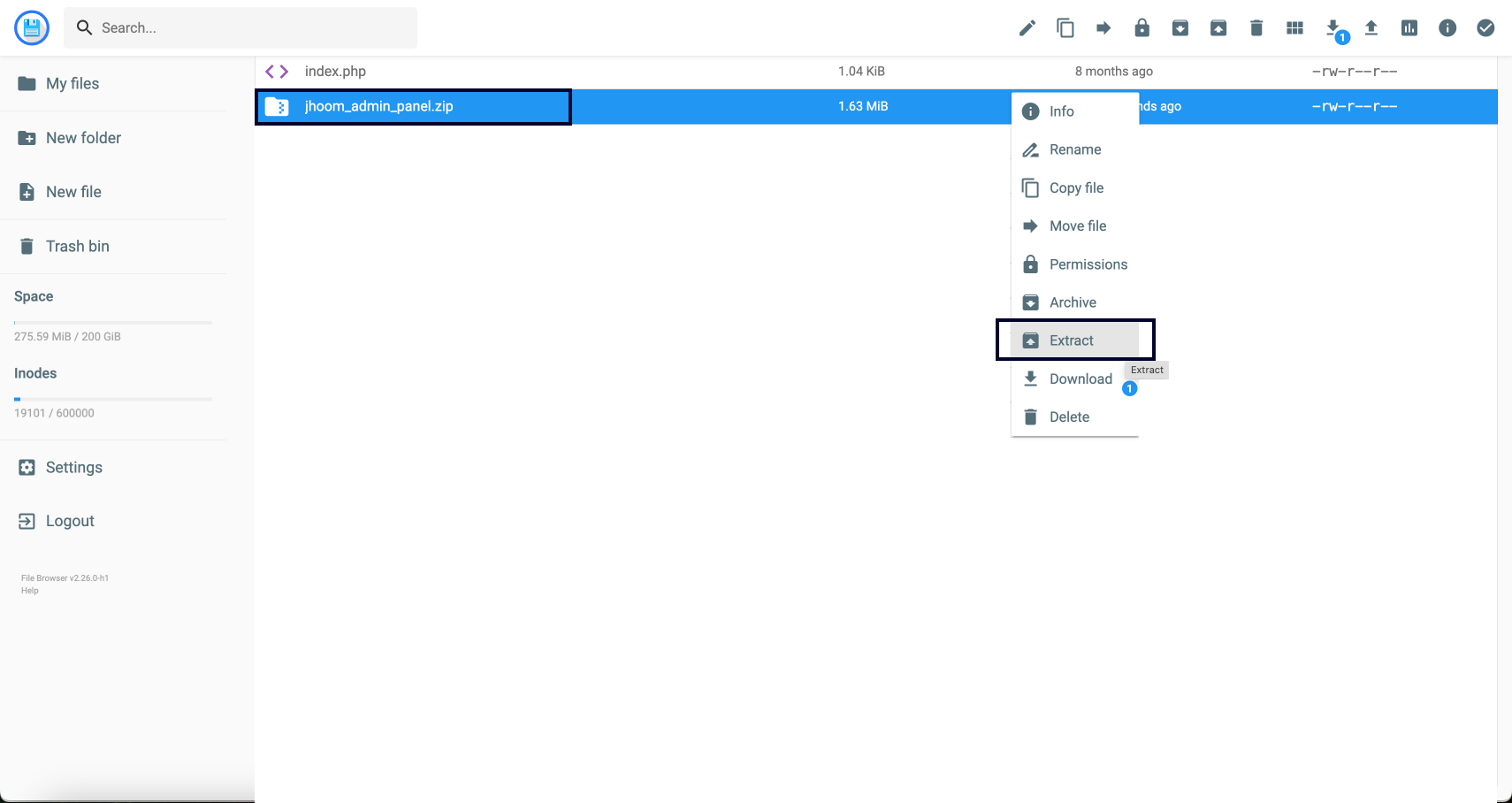
- After uploading, right-click on the
admin_panel.zipfile and choose Extract
Step 8: Configure Database Connection
- Navigate to
config >> conn.phpinside the extracted admin panel folder. - Open the conn.php file and enter your hostname, username, password, and database name that you set up earlier.
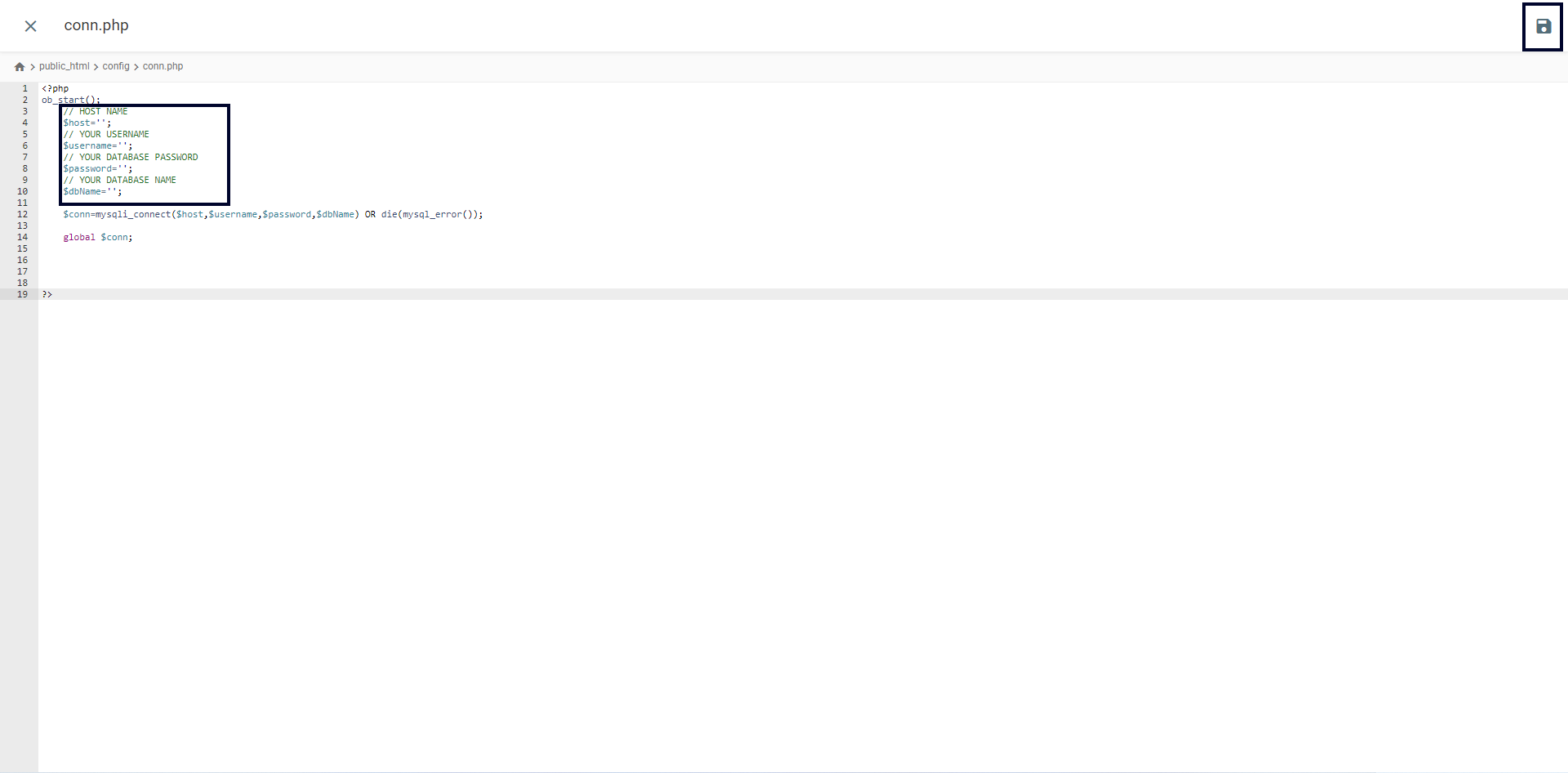
$hostName = 'localhost'; // Usually 'localhost' for Hostinger
$username = 'YOUR_DATABASE_USER'; // Replace with your database
$password = 'YOUR_DATABASE_PASSWORD'; // Replace with your
$dbName = 'YOUR_DATABASE_NAME'; // Replace with your database name
Save the changes to the conn.php file
Successfully Deployed
1. Test Your Admin Panel:
- Open your web browser and navigate to your domain (e.g.,
https://yourdomain.com). - Access the admin panel by going to the appropriate URL (e.g.,
https://yourdomain.com/admin) If you upload the files in admin folder then this url will work.
2. Log In:
- Use the admin credentials username
adminand password12345.Note do not forgot to change the default password
8. Conclusion
- You have successfully hosted your PHP admin panel on Hostinger! Your admin panel is now ready for use.